IMPORTANT
Important Safety & Compliance Information
Read this reference guide completely before attempting to operate the unit. Before using this radio, refer to the important operating instructions for safe usage and RF energy awareness and control for compliance with applicable standards and regulations.
RF Exposure and Product Safety Instructions for Portable Two-Way Radios - General Populated and Uncontrolled Environments.
ATTENTION: Before using this radio, refer to the important operating instructions for safe usage and RF energy awareness and control for compliance with applicable Standards and Regulations.
Compliance with RF Exposure Standards
Your Talkpod Two-Way radio complies with the following RF energy exposure standards and guidelines:
- United States Federal Communications Commission, Code of Federal Regulations; 47 CFR et seq. & FCC.
- Institute of Electrical and Electronic Engineers (IEEE) C95.1.
- International Commission on Non-Ionizing Radiation Protection (ICNIRP).
- RSS-210, Issue 10, DECEMBER 2019 Amendment (April 2020).
- Australian Communications Authority Radiocommunications Standard et seq.
Transmit and Receive Procedure
Your two-way radio contains a transmitter and a receiver. To control your exposure and ensure compliance with the general population/uncontrolled environment exposure limits, always adhere to the following procedure:
- Transmit no more than 50% of the time.
- To receive calls, release the Push-to-Talk (PTT) button.
- To transmit (talk), press the PTT button in front of the face.
- Hold the radio in a vertical position with the microphone and other parts of the radio including the antenna at least one inch (2.5 centimeters) away from the nose or lips. Keeping the radio at a proper distance is important to ensure compliance.
NOTE: RF exposure decreases with increasing distance from the antenna.
- Body Worn Operation. When worn on the body, always place the radio in a Talkpod-approved clip, holder, holster, case or body harness for this product.
Please refer to the following websites for more information on RF energy exposure and control:
https://www.fcc.gov/oet/rfsafety/rf-faqs.html
https://www.who.int/en/.
https://support.talkpod.com/
Two-way Radio Operation
- Use only Talkpod-approved supplied or replacement antennas, batteries, and audio accessories. Use of non-Talkpod-approved antennas, batteries, and wired or wireless accessories may exceed applicable RF exposure guidelines (IEEE, ICNIRP or FCC).
- For a list of Talkpod-approved accessories for your radio model, refer to the product support information supplied with your radio.
Electromagnetic Interference/Compatibility
NOTE: Nearly every electronic device is susceptible to electromagnetic interference (EMI) if inadequately shielded, designed or otherwise configured for electromagnetic compatibility.
This device complies with part 15 of the FCC Rules. Operation is subject to the following two conditions:
1. This device may not cause harmful interference.
2. This device must accept any interference received, including interference that may cause undesired operation.
This device complies with Industry Canada licence-exempt RSS standard(s). Operation is subject to the following two conditions:
3. This device may not cause interference.
4. This device must accept any interference received, including interference that may cause undesired operation of the device.
Facilities
To avoid electromagnetic interference and/or compatibility conflicts, turn off your radio in any facility where posted notices instruct you to do so. Hospitals or health care facilities may be using equipment that is sensitive to external RF energy.
Aircraft
When instructed to do so, turn off your radio when onboard an aircraft. Any use of a radio must be in accordance with applicable regulations per airline crew instructions.
Medical Devices - Pacemakers, Defibrillators or other Implanted Medical Devices
Persons with pacemakers, Implantable cardioverter-defibrillators (ICDs) or other active implantable medical devices (AIMD) should:
- Consult with their physicians regarding the potential risk of interference from radio frequency transmitters, such as portable radios.
- Turn the radio OFF immediately if there is any reason to suspect that interference is taking place.
- Do not carry the radio in a chest pocket or near the implantation site, and carry or use the radio on the opposite side of the body from the implantable device to minimize the potential for interference.
Hearing Aids
Some digital wireless radios may interfere with some hearing aids. In the event of such interference, consult your hearing aid manufacturer to discuss alternatives.
Other Medical Devices
If you use any other personal medical device, consult the manufacturer of your device to determine if it is adequately shielded from RF energy. Your physician may be able to assist you in obtaining this information.
Use of Communication Devices While Driving
Always check the laws and regulations on the use of radios in the areas where you drive.
- Give full attention to driving and to the road.
- Use hands-free operation, if available.
- Pull off the road and park before making or answering a call, if driving conditions or regulations so require.
For Vehicles With Air Bags
Refer to the vehicle manufacturer’s manual prior to installation of electronic equipment to avoid interference with air bag wiring. Do not place a portable radio in the area over an air bag or in the air bag deployment area.
Potentially Explosive Atmosphere
Turn off your radio prior to entering any area with a potentially explosive atmosphere. Only radio types that are especially qualified should be used in such areas as “Intrinsically Safe”. Do not remove, install or charge batteries in such areas.
NOTE: Potentially explosive atmosphere areas may include fueling areas, fuel or chemical transfer or storage facilities, and areas where the air contains chemicals or particles such as grain, dust or metal powders. Such areas are often - but not always - posted.
Blasting Caps and Areas
To avoid possible interference with blasting operations, turn off your radio when you are near electrical blasting caps, in a blasting area, or in areas posted “Turn off two-way radios”. Obey all signs and instructions.
Operational Cautions
Antennas
Do not use any portable radio that has a damaged antenna. If a damaged antenna comes into contact with your skin, a minor burn can result.
Batteries
All batteries can cause property damage and/or bodily injury such as burns if a conductive material touches exposed terminals. The conductive material may complete an electrical circuit (short circuit) and become hot.
· Built-in 1000mAh Li-Ion battery. Do not use sharp or conductive tools to remove these batteries.
· Exercise care in handling any charged battery, particularly when placing it inside a pocket, purse or other container with metal objects.
· Do not discard your battery in a fire.
· Do not replace the battery in any area labeled “Hazardous Atmosphere”.
· Do not disassemble, crush, puncture, shred or otherwise attempt to change the form of your battery.
· Do not dry a wet or damp battery with an appliance or heat source, such as a hair dryer or microwave oven.
· If the radio battery contact area has been submerged in water, dry and clean the battery contacts before attaching the battery to the radio.
USA
Use of GMRS frequencies is subject to the Rules and Regulations of the Federal Communications Commission (FCC). The FCC requires that all operators using GMRS frequencies obtain a radio license before operating their equipment. To obtain the FCC forms, visit the FCC website at wireless.fcc.gov/uls/index.htm?job=home to source forms 605 and 159, which include the instructions you will need.
For a fax | For mail service | Questions about the FCC License |
Fax-On-Demand system 1-202-418-0177 | FCC Forms Hotline 1-800-418-FORM (3676) | FCC 1-888-CALL-FCC (225-5322) |
Canada
Use of Talkpod radio in Canada is subject to the rules & regulations of Industry Canada (IC). IC requires no license when operated in Canada. Changes or modifications not expressly approved by TALKPOD Solutions may void the user authority granted by the IC/FCC to operate this radio and should not be made.
To comply with IC/FCC requirements, transmitter adjustments should be made only by or under the supervision of a person certified as technically qualified to perform transmitter maintenance and repairs in the private land mobile and fixed services. Replacement of any transmitter component not authorized by the IC/FCC equipment authorization for this radio could violate IC/FCC rules.
NOTE: Use of this radio outside the country where it was intended to be distributed is subject to government regulations and may be prohibited.
Mexico
Use of GMRS frequencies is subject to the Rules and Regulations of the Federal Communications Institute (IFT) requires that all operators using GMRS frequencies obtain a permit before operating their equipment. To obtain a permit from the IFT, the user must proceed in accordance with Articles 14 and 15 of the Federal Telecommunications Law. Consult your local IFT office for more information:
www.ift.org.mxUruguay
Use of GMRS frequencies is subject to the Rules and Regulations of the Regulatory Unit Communications Services (URSEC). URSEC requires that all operators using GMRS frequencies obtain a permit before operating their equipment. The authorization shall depend on the channel availability at the time the authorization is requested. To obtain a permit from URSEC, consult your local URSEC office for more information:
www.ursec.gub.uy.Panama
The Republic of Panama does not require authorization to use FRS/GMRS radio equipment frequencies.
Display Screen

Getting Started
Battery, Belt Clip & Basic Setup
Battery Level and Low Battery Alert
The battery icon shows when battery power is low and blinks when the battery is extremely low. Please charge it immediately.
Battery Charging
Fully charge the transceiver before using it for the first time, or if it has not been used for more than 2 months. The charger automatically restarts charging when the battery voltage drops.
· Use the supplied USB 2-in-1 cable.
· Use a 5 V/1 A output AC adapter.
NOTE: Charging time may differ depending on the current. When you use a lower than 1 A output AC adapter or PC, it may take longer to charge, or the battery may not be charged.
Attaching and Removing the Belt Clip
1. Attach the belt clip to the back of the radio until the clip clicks in place.
2. Attach the belt clip to a pocket or belt strap until the clip clicks in place.
To Remove
3. Push the release tab on top of the belt clip to release the latch.
4. Pull the belt clip away from the back of the radio.
Basic Radio Operations
Read this reference guide completely before attempting to operate the unit.
Turning Your Radio On/Off
Press and hold the [☰⏻] Menu button to turn your radio ON/OFF.
Adjusting the Volume
1. Adjust the volume by pressing the ▲ and ▼ buttons.
2. When the volume reaches level 0, the [mute] icon appears permanently on screen.
Adjusting the Sound (Key Beeps)
Your radio emits a beep each time one of the buttons is pressed, except the PTT button.
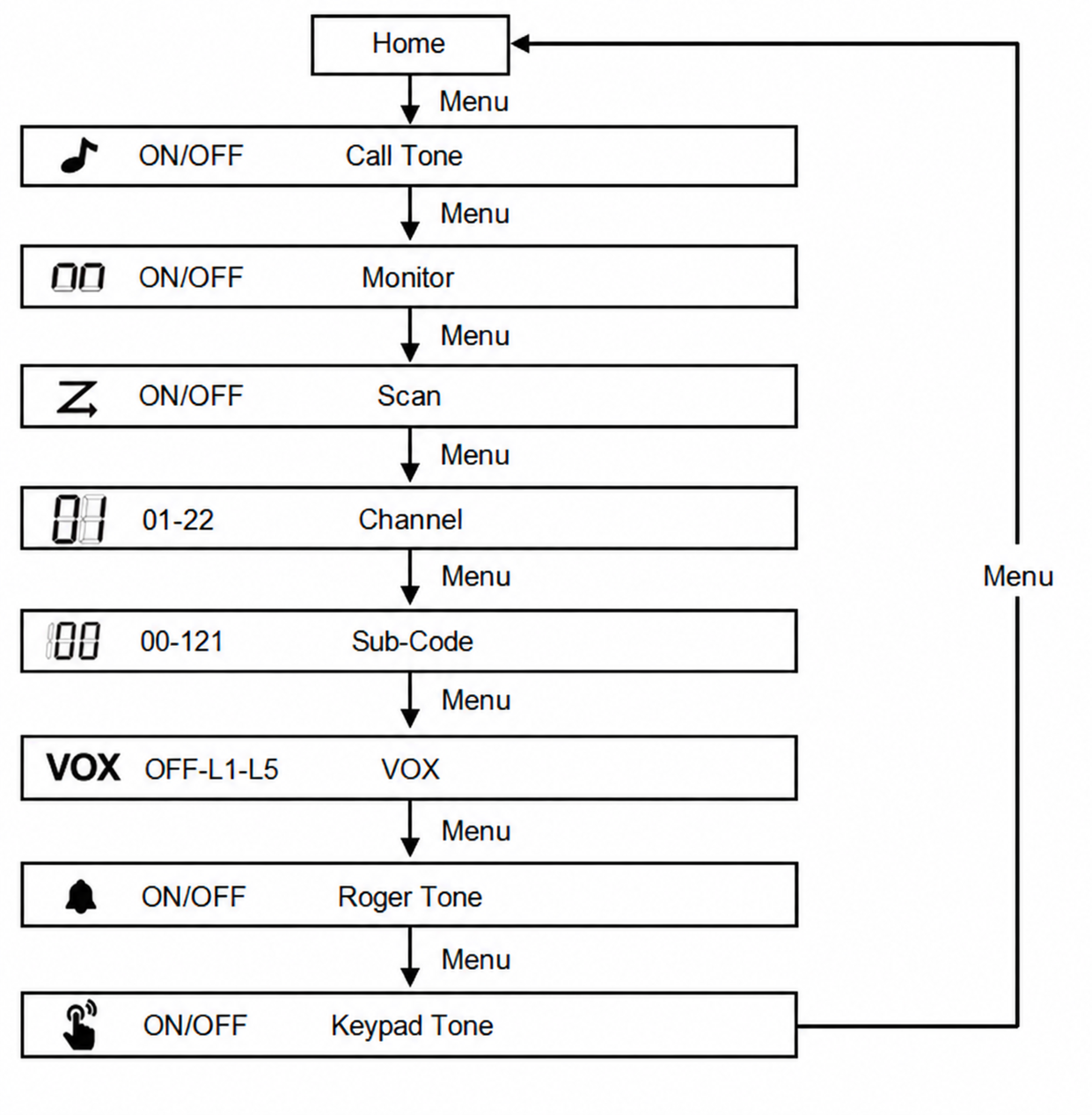
Press the [Menu] Button a time to Enter the Key Beep Option.
To Adjust your key beeps, turn ▲ and ▼ to open and close the Key Beep in Key Beep Option
Selecting a Channel
In order to speak to someone, both radios must be set to the same channel.
3. Press the [☰]button one time to enter Menu.
4. Press ▲ or ▼ to the required channel. An extended press allows you to scroll rapidly.
5. Press the PTT button to confirm the selection, or press [☰]to continue setup.
NOTE: Use the [☰]button to scroll through the menu screen. Press PTT to exit any screen and return to the home screen.
Talking and Listening
To communicate, all radios in your group must be set to the same channel.
1. To talk, press and hold the PTT button. The [Transmit status] icon is shown.
2. When you are finished talking, release the PTT button.
3. When receiving, the [Receive status] icon is shown.
For maximum clarity, hold the radio one inch away from your mouth and speak directly into the microphone. Do not cover the microphone while talking.
Talk Range
Your radio is designed to maximize performance and improve transmission range. Do not use the radios closer than five feet apart.
Push-to-Talk Timeout Timer
To prevent accidental transmissions and save battery life, the radio emits a continuous warning tone and stops transmitting if you press the PTT button for 60 continuous seconds.
Channel Scan Mode
Channel Scan Mode enables your radio to scan for active channels. When activity is detected, your radio lands (stays) on that channel for two seconds. To transmit on that channel, press the [PTT] button. When activity on the landed channel ends, your radio continues scanning other channels.
To turn the channel scan ON:
1. Press the [☰⏻] Menu button three times until the Scan setting appears.
2. Use the ▲ in the scanning option to start scanning. Press [☰⏻]or [PTT] button to turn OFF Scan mode.
Key Lock
1. Press and hold the [Keypad lock] button control until the lock icon appears.
2. When in lock mode, you can turn the radio on and off, adjust the volume, send a call tone, receive, and transmit. All other functions are locked.
3. Press and hold the [Leypad lock] button control until the icon disappears to unlock the keypad.
Monitor Mode
Monitor Mode enables you to listen for weak signals on the current channel.
1. Press the [☰⏻] Menu button three times until the Channel Monitor setting flashes and the monitor icon appears.
2. Enable continuous listening. The [monitor icon] continues to appear.
To turn Monitor Mode OFF, press the [Menu/Power] button to return to Normal mode. The monitor icon stops appearing.
Roger Beep
Roger beep sounds to indicate the end of a [PTT] transmission. It can be heard through the speaker when Key Beep is on. It cannot be heard through the speaker if Key Beep is turned off. Press and hold the ▲ button while turning the radio ON to turn Roger Beep ON. Repeat the step to turn Roger Beep OFF.
Easy Pairing
This feature allows a group of radio users to program all their Talkpod F40 radios to the same Channel and Sub-Code (CTCSS/DCS) settings quickly and simultaneously.
Any single radio within the group can be designated as the "Leader's radio", and its current Channel and Sub-Code settings will be transmitted to and copied by all the other radios in the group ("Members' radios").
Important Prerequisites
Before you begin, please ensure the following:
- Unlock the Radios: For security, the Talkpod F40 automatically locks its keypad after 30 seconds of inactivity. Press and hold the [Lock] button on all radios to unlock them before starting the pairing process.
- Proximity: Ensure all Member radios are placed near the Leader radio (within effective communication range) during the pairing process.
Step-by-Step Easy Pairing Guide
Step 1: Set Up the "Leader's Radio"
Pick any one radio to be the Leader's radio. Program this radio to your desired Channel and Sub-Code settings (refer to the "Selecting the Channel" and "Selecting the Sub-Code" sections in this user manual).
Step 2: Put All "Members' Radios" into Search/Waiting Mode
On ALL other radios (Members' radios) that you want to program:
- Press the [Easy Pairing] button once.
- The display screen will show EP and a blinking --.
Note: The display confirming EP with a blinking -- indicates that the Member's radio is in Easy Pairing waiting mode, ready to receive settings from the Leader's radio.
Best Practice: In a group with multiple radios, have all users take this step at the same time so all Member radios can be programmed in a single operation.
Step 3: Transmit Settings from the "Leader's Radio"
On the Leader's radio:
- Press the [Easy Pairing] button once. The screen will display EP and a blinking --.
- Press the [PTT (Push-To-Talk)] button twice.
- The blinking -- on the screen will become solid, and the TX (Transmit) icon will light up continuously. This indicates that the Leader's radio is actively transmitting (copying) its Channel and Sub-Code settings to all nearby Member radios.
Note on Receiving (Members' Radios): While receiving settings, the Members' radios will display EP with a blinking --, and the RX (Receive) icon will light up continuously.
Important: The pairing transmission process takes approximately 30 seconds. During this process:
- Do not operate any buttons on either the Leader or Member radios.
- Exit function is disabled: All buttons and functions are temporarily locked until the pairing transmission is complete.
Step 4: Pairing Completion
- For Members' Radios: Once the settings are successfully received and copied, all Members' radios will automatically reboot and switch to the newly paired Channel and Sub-Code.
- For Leader's Radio: After the transmission is complete, the Leader's radio will remain in Easy Pairing waiting mode (displaying EP and blinking --) to allow pairing with additional Member radios if needed. Press the [Menu] button on the Leader's radio to exit.
How to Exit Easy Pairing Mode
If you accidentally enter Easy Pairing mode (screen displays EP and blinking --):
- Press the [Menu] button to exit immediately and return to normal operation.
- Note: Other keys, including the PTT button on Members' radios, will not exit this mode.
Important Notes & Troubleshooting
Timing is Critical: The Leader's radio must transmit its settings while all Members' radios are still actively in the Easy Pairing waiting mode (EP and blinking --).
If Pairing Fails: If a Member's radio fails to copy the settings, repeat the steps above starting from Step 2.
Cross-Model & Brand Compatibility Notice
- Brand Limitation: Easy Pairing is a proprietary Talkpod feature and does NOT support cross-brand pairing (e.g., pairing between Talkpod and Motorola, Cobra, or Midland radios).
- Model Compatibility: Easy Pairing works seamlessly across different Talkpod models (e.g., pairing a Talkpod F40 with other compatible Talkpod portables).
- Regional Band Restrictions: Radios from different country/regional versions cannot copy frequency settings between each other due to regional hardware and regulatory frequency differences. Examples: A European PMR446 version cannot be paired with an American FRS version. Australian or Japanese regional versions cannot be paired with European or American models.
- Sub-Code (CTCSS/DCS) Compatibility: When performing Easy Pairing with radios that do not support Sub-Codes or have Sub-Codes disabled (Sub-Code set to 0 / Off), please ensure the Leader's radio also has its Sub-Code set to 0 before initiating Easy Pairing. When the Sub-Code is set to 0, the radio will receive all transmissions on the selected channel regardless of the transmitting radio's sub-code setting.
Weather Receiver
our radio can tune in to broadcasts by the United States National Oceanic and Atmospheric Administration (NOAA) You can listen to a weather channel or set your radio to alert you to emergency weather broadcasts that interrupt routine broadcasts.
When you listen to a weather channel, you cannot use your radio in scan mode or for two-way communications. NOAA and Environment Canada transmitters broadcast watches, forecasts and other information 24 hours a day.
NOTE: NOAA weather radio stations are assigned to cover specific areas and service may be limited. Check with your local weather office or visit
www.weather.gov/nwr in the US for transmitter information. Use of the NOAA or Weatheradio logo does not provide an endorsement or implied endorsement.
Entering Weather Mode
1. From two-way mode, use the [NOAA] menu item to enter weather mode.
2. In weather mode, enter the [weather channel] setting until the weather channel number flashes.
3. Press ▲ or ▼ to select the appropriate channel with good reception in your area.
4. Press [PTT] to set the channel or continue to weather alert setup.
Setting the Weather Alert
Your radio can be set to respond to NOAA Weather Radio emergency messages. A special alarm tone sounds an alert and turns on the weather receiver to give you immediate weather and emergency information.
5. In weather mode, enter the weather alert setting.
6. Press ▲ or ▼ to select On/Off.
7. Press [PTT] or [Menu/Power] to exit the weather menu setup.
8. Return to two-way mode. If Weather Alert is activated, the weather alert icon will display.
NOTE: When the weather channel is activated, either manually or after receiving an alert, and no buttons are pressed for 5 minutes, weather mode automatically reverts back to two-way mode. Weather Alert will not function while actively transmitting or receiving in two-way mode.
Weather Channels and Frequencies
Weather Channel | Frequency |
WX1 | 162.550 MHz |
WX2 | 162.400 MHz |
WX3 | 162.475 MHz |
WX4 | 162.425 MHz |
WX5 | 162.450 MHz |
WX6 | 162.500 MHz |
WX7 | 162.525 MHz |
WX8 | 161.650 MHz |
WX9 | 161.775 MHz |
WX10 | 161.750 MHz |
WX11 | 162.000 MHz |
Channels and Frequencies
USA, Canada, Mexico, Panama, Uruguay
Channel | Frequency | Description |
1 | 462.5625 MHz | GMRS/FRS |
2 | 462.5875 MHz | GMRS/FRS |
3 | 462.6125 MHz | GMRS/FRS |
4 | 462.6375 MHz | GMRS/FRS |
5 | 462.6625 MHz | GMRS/FRS |
6 | 462.6875 MHz | GMRS/FRS |
7 | 462.7125 MHz | GMRS/FRS |
8 | 467.5625 MHz | FRS |
9 | 467.5875 MHz | FRS |
10 | 467.6125 MHz | FRS |
11 | 467.6375 MHz | FRS |
12 | 467.6625 MHz | FRS |
13 | 467.6875 MHz | FRS |
14 | 467.7125 MHz | FRS |
15 | 462.5500 MHz | GMRS |
16 | 462.5750 MHz | GMRS |
17 | 462.6000 MHz | GMRS |
18 | 462.6250 MHz | GMRS |
19 | 462.6500 MHz | GMRS |
20 | 462.6750 MHz | GMRS |
21 | 462.7000 MHz | GMRS |
22 | 462.7250 MHz | GMRS |
Warranty
Consumer Two-Way Radio Products and Accessories purchased in the USA, Canada, Mexico, Uruguay, and Panama
What Does this Warranty Cover?
Subject to the exclusions contained below, Talkpod Technology Co. ltd. (“Talkpod”) warrants the Talkpod branded consumer two-way radios that operate via Family Radio Service or General Mobile Radio Service (“Products”), and the Talkpod branded or certified accessories sold for use with these Products (“Accessories”), to be free from defects in materials and workmanship under normal consumer usage for the period(s) outlined below. This limited warranty is the exclusive remedy of a consumer and applies to new Products and Accessories purchased by consumers in the United States or Canada that are accompanied by this written warranty.
Who is Covered?
This warranty extends only to the first consumer purchaser, and is not transferable.
What will Talkpod Technology Co., ltd. do?
Talkpod Technology Co., ltd. at its option, will at no charge repair, replace or refund the purchase price of any Products or Accessories that do not conform to this warranty. We may use functionally equivalent reconditioned, refurbished, pre-owned or new Products or Accessories.
What Other Limitations Are There?
Any implied warranties, including without limitation
The implied warranties of merchantability and fitness for a particular purpose, shall be limited to the duration of this limited warranty. Otherwise, the repair, replacement, or refund as provided under this express limited warranty is the exclusive remedy of the consumers and is provided in lieu of all other warranties, express or implied.
In no event shall Talkpod be liable, whether in contract or tort (including negligence), for damages in excess of the purchase price of the product or accessory, or for any indirect, incidental, special or consequential damages of any kind, or loss of revenue or profits, loss of business, loss of information or other financial loss arising out of or in connection with the ability or inability to use the products or accessories to the full extent these damages may be disclaimed by law.
Some states and jurisdictions do not allow the limitation or exclusion of incidental or consequential damages, or limitation on the length of an implied warranty. This warranty gives you specific legal rights, and you may also have other rights that vary from state to state or jurisdiction to anyother.
Products Covered | Length of Coverage |
Products and Accessories as defined above, unless otherwise provided for below;
Batteries whose fully charged capacity falls below 80% of their rated capacity and batteries that leak
| One (1) year from the date of purchase by the first consumer purchaser of the product unless otherwise provided for below. |
Products and Accessories that are repaired or replaced | The balance of the original warranty or for ninety (90) days from the date returned to the consumer, whichever is longer. |
Exclusions From Warranty Coverage
Normal Wear and Tear
Periodic maintenance, repair and replacement of Products or Accessories due to normal wear and tear.
Abuse & Misuse
Defects or damage that result from improper operation, storage, misuse or abuse, accident or neglect; contact with liquid, water, rain, extreme humidity or heavy perspiration, sand, dirt, extreme heat, or food; commercial or abnormal usage; or other acts which are not the fault of Talkpod.
Use of Non-Talkpod branded Products and Accessories
Defects or damage that result from the use of non-Talkpod branded or certified products, accessories, software or other peripheral equipment.
Unauthorized Service or Modification
Defects or damages resulting from service, testing, adjustment, installation, maintenance, alteration, or modification in any way by someone other than Talkpod or its authorized service centers.
Altered Products
Products or Accessories with serial numbers or date tags removed, altered or obliterated; broken seals or evidence of tampering; mismatched board serial numbers; or nonconforming or non-Talkpod branded housings or parts.
Communication Services
Defects, damages, or the failure of Products or Accessories due to any communication service or signal you may subscribe to or use with the Products or Accessories.
For Accessories:
Please call the telephone number designated above for the Product with which they are used.
You will receive instructions on how to ship the Products or Accessories at your expense to Talkpod or a TALKPOD Authorized Repair Center. To obtain service, include: (a) a copy of your receipt, bill of sale or other comparable proof of purchase; (b) a written description of the problem; (c) the name of your service provider, if applicable; (d) the name and location of the installation facility, if applicable; and (e) your address and telephone number.
For more information
Talkpod the logo are trademarks or registered trademarks of Talkpod Technology Co. ltd and are used under license. All other trademarks are the property of their respective owners.
© 2026 Talkpod Technology Co.,ltd.All rights reserved.