Talkpod F40 Quick Start Guide(UK)

Safety and General Information
Your Talkpod Two-Way Radio Complies with the Following Applicable RF Exposure Requirements and Guidelines:
- The Radio Equipment Regulations 2017, as amended.
- EN 50566:2017+A1:2023 – Product standard for demonstrating compliance of hand-held and body-mounted wireless communication devices with human exposure limits for electromagnetic fields.
- EN 50360:2017+A1:2023 – Product standard for demonstrating compliance of wireless communication devices used in close proximity to the human body with applicable electromagnetic field exposure limits.
- International Commission on Non-Ionizing Radiation Protection (ICNIRP) guidelines for limiting exposure to radiofrequency electromagnetic fields.
- Other applicable UK designated standards for radio equipment and RF exposure.
Transmit and Receive Procedure
- Transmit no more than 50% of the time.
- To receive calls, release the Push-to-Talk (PTT) button.
- To transmit (talk), press the PTT button in front of the face.
- Hold the radio in a vertical position with the microphone and other parts of the radio including the antenna at least one inch (2.5 centimeters) away from the nose or lips. Keeping the radio at a proper distance is important to ensure compliance.
- Body Worn Operation. When worn on the body, always place the radio in a Talkpod-approved clip, holder, holster, case or body harness for this product.
Two-way Radio Operation
- Use only Talkpod-approved supplied or replacement antennas, batteries and audio accessories. Use of non-Talkpod-approved antennas, batteries, or wired or wireless accessories may cause the applicable RF exposure limits or ICNIRP guidelines to be exceeded.
- For a list of Talkpod-approved accessories for your radio model, refer to the product support information supplied with your radio.
Electromagnetic Interference/Compatibility
This radio is designed to comply with the applicable UK requirements for radio equipment and electromagnetic compatibility. Always use the radio in accordance with these instructions to minimise the risk of interference with other electronic equipment.
To avoid electromagnetic interference and/or compatibility conflicts, switch OFF your radio in any facility where posted notices instruct you to do so. Hospitals and healthcare facilities may use equipment that is sensitive to external radio frequency (RF) energy.
Switch OFF your radio when instructed to do so while onboard an aircraft. Any use of a radio onboard an aircraft must comply with applicable regulations and the instructions of the airline crew.
Persons with pacemakers, implantable cardioverter-defibrillators (ICDs), or other active implantable medical devices (AIMDs) should:
- 1. Consult their doctor regarding the potential risk of interference from radio frequency transmitters, such as portable two-way radios.
- 2. Switch the radio OFF immediately if there is any reason to suspect that interference is occurring.
- 3. Do not carry the radio in a chest pocket or close to the implantation site. Where possible, carry and use the radio on the opposite side of the body from the implanted medical device to minimise the potential for interference.
Some digital two-way radios may interfere with certain hearing aids. If such interference occurs, consult the manufacturer of your hearing aid to discuss possible alternatives.
If you use any other personal medical device, consult the manufacturer of the device to determine whether it is adequately shielded from radio frequency (RF) energy.Your doctor may be able to assist you in obtaining this information.
Always check and comply with the applicable laws and regulations governing the use of two-way radios while driving.
- 1. Give your full attention to driving and the road.
- 2. Use hands-free operation, where available and permitted by law.
- 3. Pull over safely and park before making or answering a call if required by driving conditions or applicable regulations.
Refer to the vehicle manufacturer’s manual prior to installation of electronic equipment to avoid interference with air bag wiring. Do not place a portable radio in the area over an air bag or in the air bag deployment area.
Potentially Explosive Atmosphere
Blasting Caps and Areas
Operational Cautions
Do not use any portable radio that has a damaged antenna. If a damaged antenna comes into contact with your skin, a minor burn can result.
All batteries can cause property damage and/or bodily injury such as burns if a conductive material touches exposed terminals. The conductive material may complete an electrical circuit (short circuit) and become hot.· Built-in 1000mAh Li-Ion battery. Do not use sharp or conductive tools to remove these batteries.· Exercise care in handling any charged battery, particularly when placing it inside a pocket, purse or other container with metal objects.· Do not discard your battery in a fire.· Do not replace the battery in any area labeled “Hazardous Atmosphere”.· Do not disassemble, crush, puncture, shred or otherwise attempt to change the form of your battery.· Do not dry a wet or damp battery with an appliance or heat source, such as a hair dryer or microwave oven.· If the radio battery contact area has been submerged in water, dry and clean the battery contacts before attaching the battery to the radio.
Control Buttons
Display Screen
Getting Started
Battery, Belt Clip & Basic Set
Battery Charging
Attaching and Removing the Belt Clip
Basic Radio Operations
Turning Your Radio On/Off
Adjusting the Volume
Adjusting the Sound (Key Beeps)
Selecting a Channel
Menu Overview
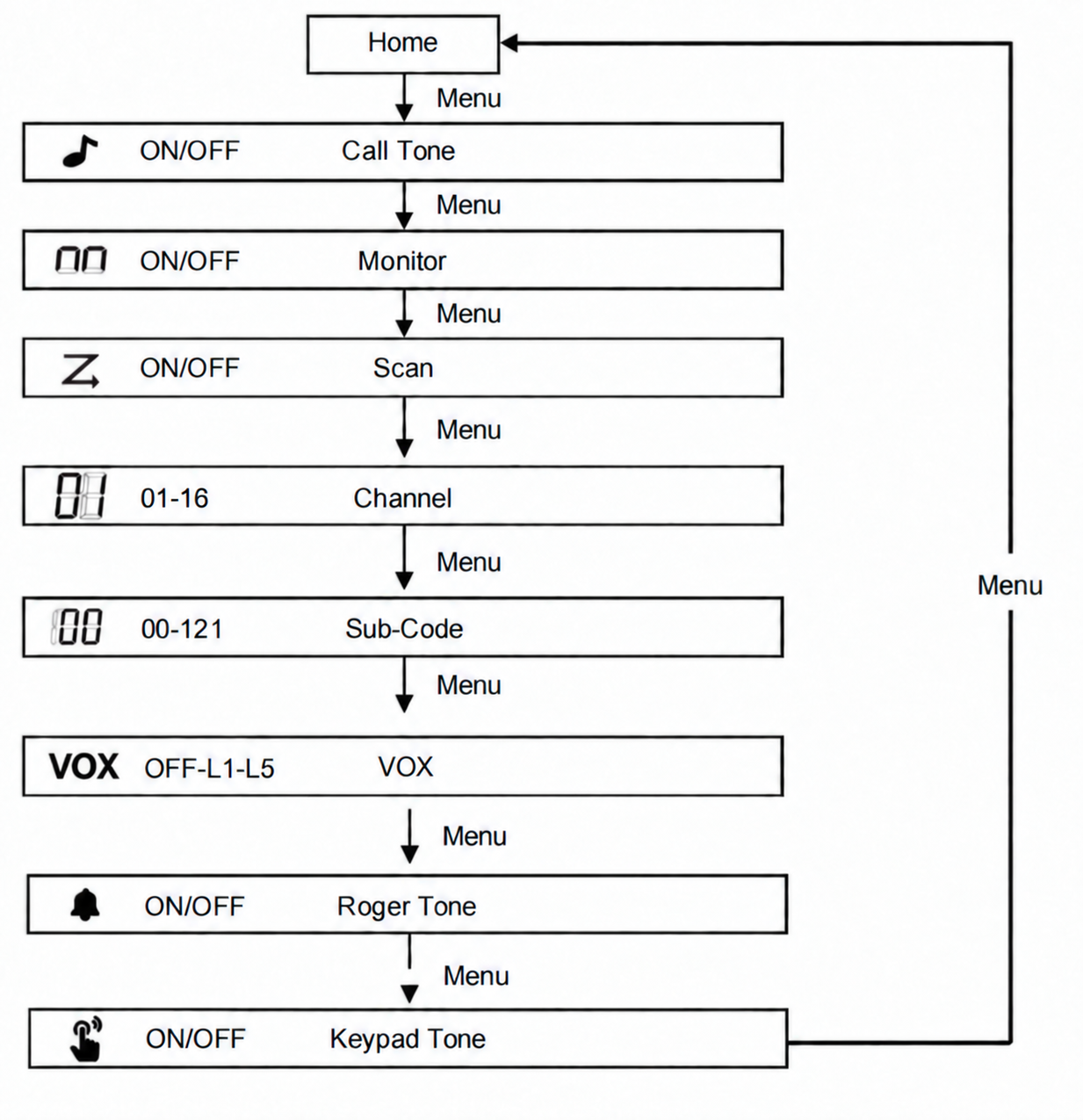
Talking and Listening
Talk Range
Push-to-Talk Timeout Timer
Channel Scan Mode
Key Lock
Monitor Mode
Roger Beep
Easy Pairing
- Unlock the Radios: For security, the Talkpod F40 automatically locks its keypad after 30 seconds of inactivity. Press and hold the [Lock] button on all radios to unlock them before starting the pairing process.
- Proximity: Ensure all Member radios are placed near the Leader radio (within effective communication range) during the pairing process.
Step 1: Set Up the "Leader's Radio"
Step 2: Put All "Members' Radios" into Search/Waiting Mode
- Press the [Easy Pairing] button once.
- The display screen will show EP and a blinking --.
Step 3: Transmit Settings from the "Leader's Radio"
- Press the [Easy Pairing] button once. The screen will display EP and a blinking --.
- Press the [PTT (Push-To-Talk)] button twice.
- The blinking -- on the screen will become solid, and the TX (Transmit) icon will light up continuously. This indicates that the Leader's radio is actively transmitting (copying) its Channel and Sub-Code settings to all nearby Member radios.
- Do not operate any buttons on either the Leader or Member radios.
- Exit function is disabled: All buttons and functions are temporarily locked until the pairing transmission is complete.
Step 4: Pairing Completion
- For Members' Radios: Once the settings are successfully received and copied, all Members' radios will automatically reboot and switch to the newly paired Channel and Sub-Code.
- For Leader's Radio: After the transmission is complete, the Leader's radio will remain in Easy Pairing waiting mode (displaying EP and blinking --) to allow pairing with additional Member radios if needed. Press the [Menu] button on the Leader's radio to exit.
How to Exit Easy Pairing Mode
- Press the [Menu] button to exit immediately and return to normal operation.
- Note: Other keys, including the PTT button on Members' radios, will not exit this mode.
Important Notes & Troubleshooting
Cross-Model & Brand Compatibility Notice
- Brand Limitation: Easy Pairing is a proprietary Talkpod feature and does NOT support cross-brand pairing (e.g., pairing between Talkpod and Motorola, Cobra, or Midland radios).
- Model Compatibility: Easy Pairing works seamlessly across different Talkpod models (e.g., pairing a Talkpod F40 with other compatible Talkpod portables).
- Regional Band Restrictions: Radios from different country/regional versions cannot copy frequency settings between each other due to regional hardware and regulatory frequency differences. Examples: A European PMR446 version cannot be paired with an American FRS version. Australian or Japanese regional versions cannot be paired with European or American models.
- Sub-Code (CTCSS/DCS) Compatibility: When performing Easy Pairing with radios that do not support Sub-Codes or have Sub-Codes disabled (Sub-Code set to 0 / Off), please ensure the Leader's radio also has its Sub-Code set to 0 before initiating Easy Pairing. When the Sub-Code is set to 0, the radio will receive all transmissions on the selected channel regardless of the transmitting radio's sub-code setting.
Channels and Frequencies
Channel | Frequency | Description |
1 | 446.00625 MHz | PMR446 |
2 | 446.01875 MHz | PMR446 |
3 | 446.03125MHz | PMR446 |
4 | 446.04375 MHz | PMR446 |
5 | 446.05625 MHz | PMR446 |
6 | 446.06875 MHz | PMR446 |
7 | 446.08125 MHz | PMR446 |
8 | 446.09375MHz | PMR446 |
9 | 446.10625 MHz | PMR446 |
10 | 446.11875 MHz | PMR446 |
11 | 446.13125 MHz | PMR446 |
12 | 446.14375 MHz | PMR446 |
13 | 446.15625 MHz | PMR446 |
14 | 446.16875 MHz | PMR446 |
15 | 446.18125 MHz | PMR446 |
16 | 446.19375 MHz | PMR446 |
Warranty
What Does this Warranty Cover?
Who is Covered?
What will Talkpod Technology Co., ltd. do?
What Other Limitations Are There?
Products Covered | Length of Coverage |
Products and Accessories as defined above, unless otherwise provided for below; Batteries whose fully charged capacity falls below 80% of their rated capacity and batteries that leak | One (1) year from the date of purchase by the first consumer purchaser of the product unless otherwise provided for below. |
Products and Accessories that are repaired or replaced | The balance of the original warranty or for ninety (90) days from the date returned to the consumer, whichever is longer. |